Winlator LuDaShi Audio Not Working? Sound Fixes & Solutions
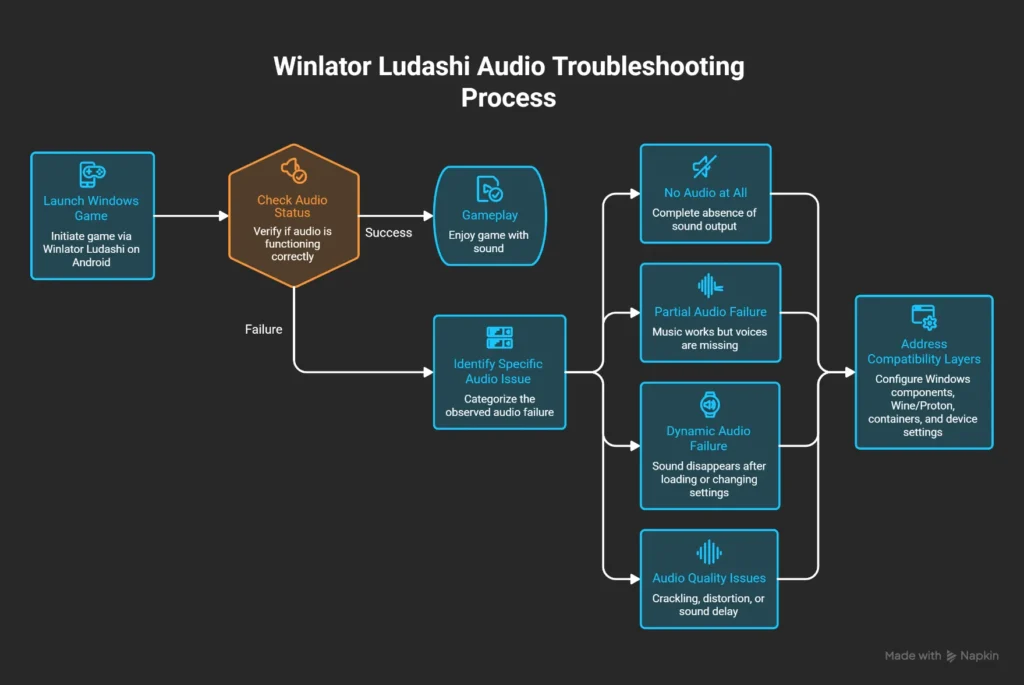
Playing Windows PC games on Android through Winlator Ludashi can provide a great experience. Winlator Ludashi may run games smoothly but still experience audio issues, such as no sound, missing voices, crackling, delays, or sound stopping after loading.
These problems often occur because Windows games rely on audio systems that must work through Wine, container settings, and Android’s audio drivers.
Common causes include incorrect audio settings, compatibility issues, and unsupported audio components.
Why Does Ludashi Have Audio Problems?
Windows PC games are designed to use Windows audio systems.
When running through Winlator Ludashi, the audio path becomes:
Windows Game
→ Wine/Proton Environment
→ Audio Compatibility Layer
→ Android Audio System
→ Device Speakers or Headphones
A problem at any stage can cause audio failure.
Common causes
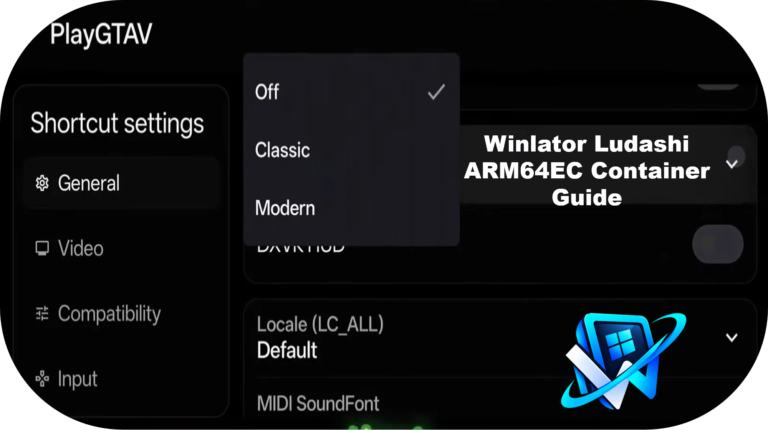
Fix 1: Check Container Audio Settings
The container creates the Windows environment where the game runs.
Incorrect container settings can prevent audio from working.
Check:
- Audio configuration
- Container compatibility settings
- Selected environment options
If a game works visually but has no sound, the container audio configuration should be one of the first things to test.
Audio Driver Configuration
Different configurations may behave differently.
A setup that works for one game may not work for another.
Testing another container configuration can help identify whether the issue is related to the environment.
Container Compatibility Problems
Older containers or heavily modified containers may contain settings that affect audio.
Possible solution:
Create a fresh container and test the same game.
Fix 2: Check Wine Audio System
Wine provides the Windows compatibility environment used by many Winlator setups.
Audio inside Wine depends on proper communication between:
- Windows application
- Wine components
- Android audio system
How Wine Handles Sound
A Windows game sends audio commands expecting Windows audio services.
Wine translates these requests so they can work in the non-Windows environment.
If this translation does not work correctly:
- The game may have no sound
- Audio may become unstable
- Some effects may disappear
Audio Backend Problems
Different games may behave differently depending on the audio configuration.
Possible symptoms:
- No sound after launch
- Audio starts then stops
- Missing effects
Testing another Wine configuration may help.
Fix 3: Check Proton Audio Compatibility
Proton is designed mainly for gaming compatibility.
It includes gaming-focused improvements, but compatibility can still vary between games.
Proton Gaming Environment
Some games may work better with one Proton environment than another.
If audio problems appear:
Try:
- Another available Proton configuration
- A different container
- Default settings before advanced changes
Game-Specific Audio Issues
Some games have special requirements for:
- Voice files
- Audio engines
- Runtime components
A game may need additional testing even when other games have working sound.
Fix 4: Install Missing Audio Components
Some Windows games require additional components to handle sound correctly.
Missing components may cause:
- No voice audio
- Missing effects
- Game crashes related to audio
Check the game’s requirements and make sure required Windows components are available.
Fix 5: Fix Crackling Sound
Not all audio problems are complete sound failures.
Some users experience:
- Crackling audio
- Distorted sound
- Audio delays
- Stuttering sound
These issues are often related to performance.
Performance-Related Audio Issues
Audio processing also requires system resources.
If the device is struggling with:
- CPU load
- Memory usage
- Graphics processing
Possible solutions:
- Lower game graphics settings
- Reduce resolution
- Close background applications
- Improve overall performance
Fix 6: Check Graphics and Performance
Although graphics settings mainly affect visuals, poor performance can also affect audio timing.
FPS Drops
When a game struggles to maintain stable performance, audio synchronization problems may appear.
Symptoms
- Sound pauses briefly
- Audio becomes delayed
- Crackling happens during heavy scenes
Try reducing workload
- Lower graphics quality
- Reduce resolution
- Test lighter settings
Synchronization Problems
Some games require stable timing between:
- Graphics
- CPU processing
- Audio playback
Performance optimization can sometimes improve audio stability.
Fix 7: Create a Fresh Container
If audio worked before but stopped after changing settings, the container may have configuration conflicts.
Creating a new container can help when:
- Many settings were changed
- Multiple environments were tested
- The setup became unstable
Winlator Ludashi Audio Problems
Game Has No Sound But Runs
Possible causes
- Audio configuration issue
- Wine compatibility problem
- Game settings disabled
Try checking
- Android volume
- Game audio settings
- Container configuration
Music Works But Voice Does Not
This usually means the game is partially producing audio.
Possible causes:
- Missing voice files
- Required audio components
- Game-specific compatibility issue
Check game files and required components.
Sound Stutters During Gameplay
Possible causes:
- Performance limitations
- Device overheating
- High graphics load
Try reducing game settings.
Audio Stops After Loading
Possible causes:
- Audio service initialization issue
- Compatibility problem after entering gameplay
Testing another environment may help.
Audio Delay Problems
Possible causes:
- Performance pressure
- Processing delay
- Configuration issues
Reducing system load can improve synchronization.
Diagnose Winlator Audio Problems
Follow a simple testing process.
Step 1: Confirm The Problem Is Not Device Audio
Check:
- Android volume
- Headphones
- Bluetooth connection
Step 2: Check Game Settings
Make sure the game itself has audio enabled.
Step 3: Test Another Game
If another game has sound, the problem may be game-specific.
Step 4: Test Another Container
A different container can show whether the issue comes from configuration.
Step 5: Change One Setting at a Time
Avoid changing multiple options together.
Test:
- Container settings
- Wine/Proton environment
- Performance settings
Prevent Future Audio Problems
Keep Stable Containers
When audio works correctly:
- Save the container
- Keep the settings
- Avoid unnecessary changes
Backup Configurations
Before testing new environments:
- Keep backups
- Save working setups
- Record successful settings
Frequently Asked Questions
Final Thoughts
Winlator Ludashi audio problems usually come from compatibility differences between Windows games. Most Winlator Ludashi audio issues can be resolved by checking sound settings, adjusting container configurations, and ensuring compatibility with Wine or Proton.
Start with basic troubleshooting, test one change at a time, and save the settings that work best. This helps prevent recurring audio problems and ensures a smoother, more stable gaming experience.