Winlator LuDaShi EXE Installation Guide – Install PC Games on Android
Winlator Ludashi allows Android users to run many Windows PC games directly on their smartphones. Instead of installing games like normal Android applications, users need to add Windows game files and run them through a Winlator container.
For many beginners, the process can be confusing because PC games usually come as EXE files, while Android devices normally cannot open Windows applications.
Winlator Ludashi solves this problem by creating a Windows-like environment using compatibility technologies such as Wine, Box64, FEXCore, DXVK, and VKD3D.
What You Need Before Adding PC Games to Winlator Ludashi
Before installing any Windows game, make sure your device and files are ready.
A Compatible Android Device
Game performance depends on your phone hardware.
Important factors include:
A powerful chipset does not guarantee that every game will run, but better hardware usually provides a smoother experience.
Enough Storage Space
Windows PC games are usually much larger than Android apps.
You need space for:
Always keep extra storage available because containers and game files can grow after installation.
PC Game Files
Winlator Ludashi can work with different types of Windows game files.
Common formats include:
The installation method depends on the type of game you have.
How Winlator Ludashi Handles PC Game Installation
Winlator Ludashi does not convert a Windows game into an Android application.
Instead, it creates a Windows environment inside Android.
The process works through different compatibility layers:
Because every game uses different technologies, one game may work perfectly while another may require additional settings.
Step 1: Create a Winlator Ludashi Container
A container is the environment where your PC game runs.
Each container stores:
- Windows environment settings
- Graphics configuration
- Audio settings
- Performance options
- Game files
Creating a separate container for each major game is recommended because different games may require different configurations.
How to Create a Container
Follow these steps:
- Open Winlator Ludashi.
- Go to the Containers section.
- Create a new container.
- Select your preferred settings.
- Save the container.
For your first installation, keep the default settings and test the game before making advanced changes.
Step 2: Move Your PC Game Files to Android
After creating a container, transfer your game files to your Android device.
You can move files using:
- USB cable
- Cloud storage
- PC file transfer
- External storage
Keep each game organized separately so you can easily find the installer or executable file later.
Step 3: Install a PC Game Using an EXE File
Most Windows games include an installer file such as a setup executable.
To install a game:
- Open Winlator Ludashi.
- Enter your selected container.
- Open the file manager.
- Locate the game installer.
- Run the EXE file.
- Follow the Windows installation steps.
The installation process works similarly to installing a program on a Windows computer.
Installing Portable PC Games Without Setup Files
Some games do not require installation.
These games usually already contain:
- Game executable file
- Required game data
- Supporting files
For portable games:
- Move the complete game folder to your phone.
- Open the folder through Winlator Ludashi.
- Select the main game EXE file.
- Test whether the game launches.
Portable versions can sometimes be easier because they do not require additional installation steps
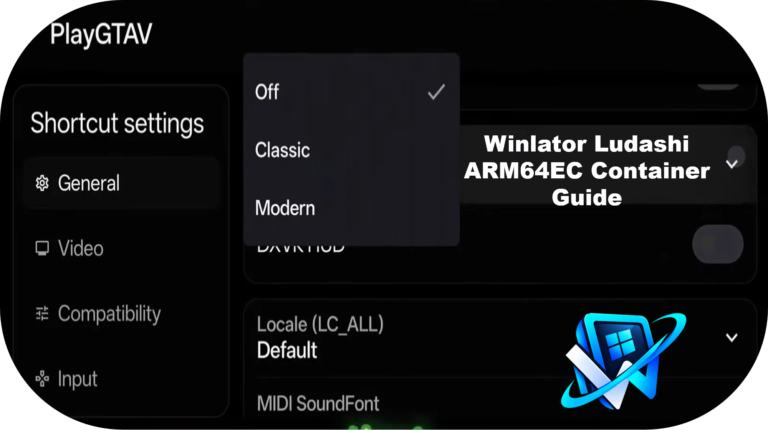
Step 4: Configure Game Settings After Installation
After installing a game, you may need to adjust settings for better compatibility.
Common settings include:
Lower resolutions usually improve performance because the GPU has fewer pixels to process.
Different games may perform differently depending on:
- Vulkan settings
- DXVK configuration
- VKD3D support
CPU Performance Options
CPU translation settings can affect both speed and stability.
Always change one setting at a time so you can identify what improves or reduces performance.
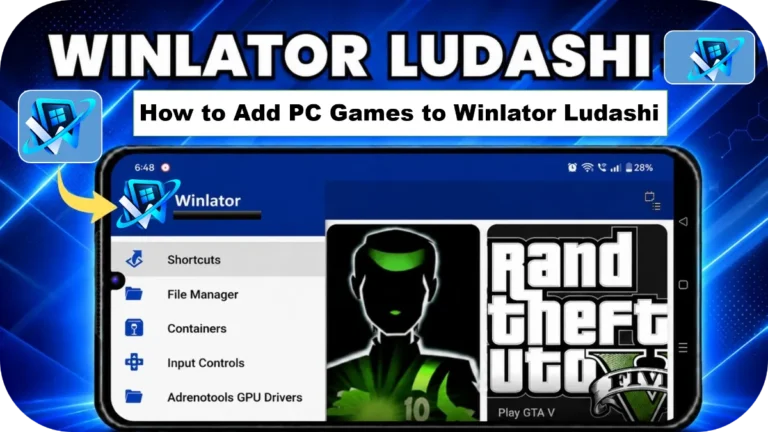
Step 5: Add Installed Games to Winlator Ludashi Library
After successfully installing a game, you can add it to the Winlator library.
This allows faster access without manually searching for the game file every time.
Steps:
Your game will now appear inside your Winlator game list.
Best Practices for Running PC Games on Winlator Ludashi
Use Separate Containers for Different Games
Different games may require different:
- Graphics settings
- Wine versions
- Driver options
- Resolution settings
A separate container helps prevent one game’s configuration from affecting another.
Test Before Changing Advanced Settings
Many users change multiple settings immediately after installation.
This makes troubleshooting difficult.
A better method:
Keep Backup Copies
Before updating Winlator Ludashi or changing important settings, keep backups of:
- Game files
- Save data
- Container configurations
Common Problems When Adding EXE Games
EXE File Does Not Open
If the installer does not start, possible reasons include:
Try creating a new container and testing again.
Game Does Not Launch
A successful installation does not always mean the game will run.
Possible causes:
Missing DLL Errors
Some Windows games require additional system files.
Possible solutions:
Black Screen After Starting
Black screens are commonly caused by:
Try:
Low FPS After Installation
If the game launches but performance is poor:
Mobile devices can reduce performance when they become too hot. For more ways to improve game performance, read our Winlator LuDaShi best settings for FPS guide.
How to Remove or Reinstall PC Games in Winlator Ludashi
If you want to remove a game:
Delete the shortcut from Winlator.
Remove unnecessary game files.
Keep save files if you want to reinstall later.
If you reinstall the game:
Use the same container if it worked correctly.
Create a new container if the previous setup caused problems.
Final verdict
Adding PC games to Winlator Ludashi becomes much easier when you understand how containers, EXE installers, and game settings work together.
Start with simple games, use stable configurations, and change one setting at a time to avoid unnecessary issues. With compatible hardware and the right setup, you can enjoy many Windows PC games on your Android device.