Winlator LuDaShi Black Screen Fix: Game Launch & Graphics Issues
A black screen is a common problem when running Windows PC games through Winlator Ludashi. In some cases, the game launches normally, with audio and controls working, but the display remains completely black. Sometimes, the screen turns black after the game logo or loading screen appears.
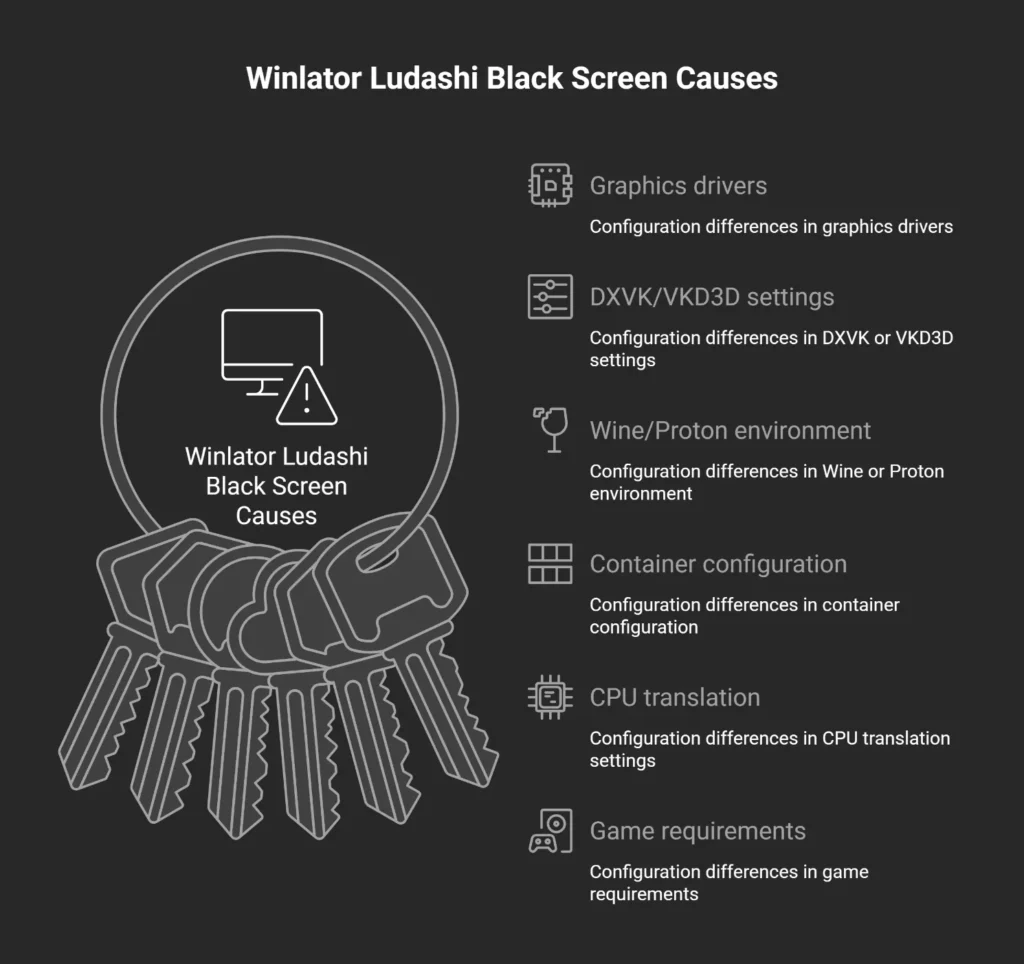
This issue can be caused by several factors, including incompatible graphics drivers, incorrect DXVK or VKD3D settings, Wine configuration problems, container settings, or CPU translation issues.
However, a black screen does not always mean that a game is incompatible with Winlator Ludashi, as the problem may be related to the current configuration or graphics rendering environment.
Why Does Winlator Ludashi Show a Black Screen?
A black screen usually happens when the game starts, but the graphics output is not displayed correctly.
The most common causes include:
Finding the exact cause requires testing different parts of the setup.
Check Basic Issues First
Before changing advanced settings, check the simple things.
Restart the Container
Sometimes a temporary container issue prevents graphics from loading correctly.
Try:
- Close the game.
- Exit the container.
- Restart Winlator Ludashi.
- Launch the game again.
A fresh restart can solve temporary problems.
Compatibility
Not every Windows game works perfectly in Winlator Ludashi.
A black screen may happen because the game requires:
- Unsupported DirectX features
- Missing Windows components
- Hardware capabilities your device does not provide
Confirm Game Files
Incomplete or damaged game files can also cause display problems.
Check:
- Game installation completed correctly
- Required files are present
- The main executable is working
Fix 1: Change Graphics Driver
Graphics drivers are one of the most common reasons behind black screen issues.
Winlator Ludashi may use different drivers depending on your device.
Common options include:
- Turnip
- Zink
- Freedreno
The best option depends on your GPU and game.
Turnip Driver Problems
Turnip is commonly used with Adreno GPUs.
A wrong Turnip configuration may cause:
- Black screen
- Missing textures
- Game crashes
If a game shows a black screen with Turnip:
Zink Driver
Problems
Zink translates OpenGL through Vulkan.
Some games may work better with it, while others may show problems.
If Zink causes a black screen:
Try switching to another graphics option and compare the result.
Freedreno Driver Problems
Freedreno may behave differently depending on the game and hardware.
If graphics do not appear correctly:
Test another driver configuration.
Fix 2: Adjust DXVK and VKD3D Settings
Graphics translation layers can also cause black screen problems.
The correct option depends on the DirectX version used by the game.
DXVK Black Screen Issues
DXVK is mainly used for:
- DirectX 9
- DirectX 10
- DirectX 11 games
If an older or DirectX 11 game shows a black screen:
Try:
- Changing DXVK settings
- Testing another driver
- Lowering graphics settings
VKD3D Compatibility Problems
VKD3D is mainly used for DirectX 12 games.
DirectX 12 games are more complex and may require:
- Better hardware support
- Correct driver compatibility
- Proper container configuration
If a DX12 game stays black:
Try testing different settings or a different container.
Fix 3: Change Wine or Proton Environment
Wine and Proton control how Windows applications run inside Winlator Ludashi.
A game may work in one environment but fail in another.
Possible solutions:
- Test another Wine configuration
- Try another Proton environment if available
- Create a clean container
Different games depend on different Windows components, so compatibility can vary.
Fix 4: Adjust Resolution Settings
Sometimes the game is running, but the selected resolution causes display problems.
Try:
- Lowering the resolution
- Using a standard resolution
- Testing windowed mode if available
Very high resolutions can create problems, especially on mobile hardware.
Fix 5: Change Box64 or FEXCore Settings
CPU translation layers can also affect game startup.
A game may fail before graphics are properly displayed because of CPU compatibility issues.
If the game shows a black screen:
Try:
- Testing another CPU translation option
- Comparing Box64 and FEXCore configurations
- Using a separate container for testing
Remember that changing CPU translation does not always fix graphics problems.
Fix 6: Create a Fresh Container
Old containers may contain settings that no longer work after changes.
Creating a new container can help when:
- Many settings were changed
- Multiple drivers were tested
- The container became unstable
A fresh container gives you a clean starting point.
Fix 7: Check Permissions and Storage Access
Winlator Ludashi needs access to required files.
Storage permission issues can cause:
- Missing game files
- Failed loading
- Incorrect game behavior
Check that:
- Game files are accessible
- Container data is available
- Storage permissions are enabled
Game Starts, But Screen Remains Black
Different black screen situations can point to different causes.
Audio Works But No Display
If you hear sound but see nothing:
Possible causes:
- Graphics driver issue
- Renderer problem
- Resolution mismatch
Try changing graphics settings first.
Menu Appears Then Black Screen
This often happens when the game loads advanced graphics features.
Possible causes:
- DirectX compatibility issue
- Shader problem
- Driver limitation
Testing another DXVK/VKD3D configuration may help.
Black Screen After Loading
If the game starts but becomes black after loading:
Possible causes:
- In-game graphics settings
- Unsupported effects
- Memory limitations
Try:
- Lowering game graphics
- Resetting configuration files
- Testing another container
Prevent Future Black Screen Problems
You can reduce future issues by following good configuration habits.
Change One Setting at a Time
Do not change:
- Driver
- Renderer
- CPU translation
- Resolution
Testing one change makes troubleshooting easier.
Keep Working Containers
If a game works correctly:
- Keep the container
- Save the configuration
- Avoid unnecessary changes
A working setup is valuable.
Backup Before Major Changes
Before experimenting with:
- New drivers
- New containers
- New Winlator versions
Keep a backup of your important data.
Final Thoughts
Winlator Ludashi black screen issues are often caused by compatibility problems rather than a single specific error. Graphics drivers, container settings, and compatibility layers can all affect how a game runs.
For better results, troubleshoot systematically by checking the container configuration, testing graphics drivers, adjusting DXVK or VKD3D settings, and comparing Wine or Proton environments. Change one setting at a time to identify which adjustment resolves the problem.
Once you find a stable configuration that works with your game and device, keep a backup of your settings to avoid repeating the troubleshooting process.