GTA Games on Winlator LuDaShi: Best Settings, Performance & FPS Guide
Playing Grand Theft Auto games on Android through Winlator LuDaShi can bring classic PC gaming to compatible smartphones. Performance varies considerably depending on the GTA title, your phone’s processor, GPU drivers, available RAM, and emulator configuration.
Older games such as GTA III, Vice City, and San Andreas are generally less demanding than GTA IV and GTA V, although compatibility still depends on the specific game version and setup.
Can You Play GTA Games on Winlator LuDaShi?
Yes, several PC versions of GTA games may run through Winlator LuDaShi. Older releases are usually more practical starting points, while newer entries require considerably more processing power and graphics compatibility.
How GTA Games Run Through Windows Emulation on Android
Winlator uses compatibility and translation components to run supported Windows applications on Android devices. Performance depends on the game’s architecture, rendering API, processor, graphics driver, and container settings.
Different GTA games also have different requirements.
GTA III, Vice City, and San Andreas are older titles, whereas GTA IV and GTA V place greater demands on hardware. A game launching successfully does not necessarily mean it will maintain stable performance during extended gameplay.
What You Need Before Running GTA Games
Before starting, make sure you have:
GTA Games System Requirements for Winlator LuDaShi
There is no single hardware requirement for every GTA game. Your phone must handle both the game’s original requirements and the additional overhead of Windows compatibility layers.
Minimum Hardware Considerations
Older GTA titles are generally the better choice for entry-level and midrange phones. GTA IV and GTA V are considerably more demanding and may experience low FPS, long loading times, or crashes on devices with limited resources.
Storage requirements depend on the game edition and installation method. Keep extra free space for extracted files, container data, and temporary files.
Snapdragon and Adreno Specifications
Recent flagship Snapdragon processors with Adreno GPUs are strong candidates for demanding Windows games. Devices using chipsets such as Snapdragon 8 Gen 3 or Snapdragon 8 Elite offer substantial processing capability. For more chipset-specific information, see our Winlator LuDaShi Snapdragon performance guide.
MediaTek Dimensity processors can also be capable, although Mali GPU driver compatibility may create additional challenges. The best choice depends on the specific game and graphics configuration.
Best settings for GTA Games on Winlator LuDaShi
Start with conservative graphics settings, then adjust them according to the GTA title and your phone’s performance.
Recommended Resolution and Graphics Quality:
Setting | Recommended starting point |
Resolution | 800×600 or low |
Graphics quality | Low for initial testing |
Shadows | Low or disabled |
Anti-aliasing | Off |
Textures | Low or medium, depending on available memory |
Frame-rate target | Prioritize consistent performance |
Container settings | Start with recommended defaults |
These are general starting recommendations, not verified optimal settings for every GTA game. Older titles may tolerate higher resolutions, while demanding releases may require substantial compromises.
Graphics Drivers and DXVK Configuration
Choose a graphics driver that supports your phone’s GPU and Winlator build. Turnip is intended for supported Adreno GPUs and should not be assumed to work on Mali GPUs. Learn more about Turnip, Zink, and Freedreno in our Winlator LuDaShi drivers guide.
DXVK translates Direct3D 9, 10, and 11 calls into Vulkan commands. Its usefulness depends on the game’s rendering path and available driver support.
If a GTA game displays a black screen or graphical corruption, test another supported configuration rather than changing every setting simultaneously.
Box64 Container Settings
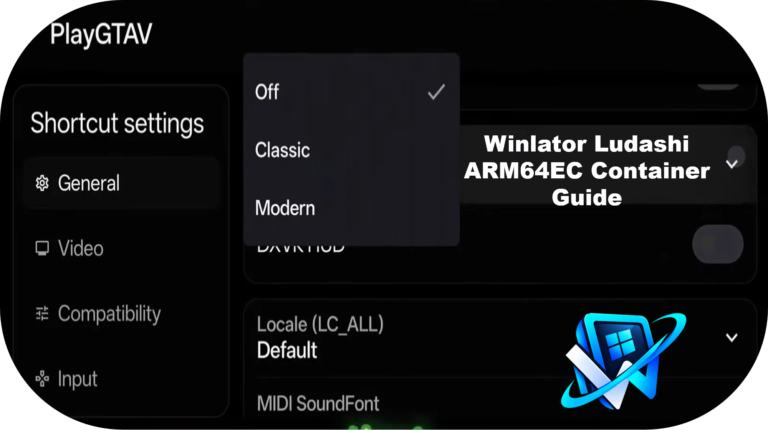
Begin with the recommended Box64 preset and default container options. Box64 translates x86-64 instructions, and configuration changes can affect compatibility as well as performance.
Keep a record of working settings for each GTA game. A configuration that works for San Andreas may not be suitable for GTA IV or GTA V.
GTA Games FPS and Performance on Different Android Phones
Below the performance of GTA games is discussed for different devices:
Performance on Flagship Snapdragon Chipsets
Flagship Snapdragon phones generally provide the strongest starting point for demanding GTA games because of their CPU performance and Adreno graphics hardware.
Performance on Midrange Snapdragon Phones
Midrange Snapdragon devices are better candidates for older GTA releases. Lower resolution and reduced graphics quality can improve performance, but they cannot eliminate every CPU, driver, or compatibility limitation.
GTA Games Performance on MediaTek Devices
MediaTek phones may run compatible GTA titles, but results depend on the Dimensity or Helio chipset and Mali GPU capabilities. For more details about chipset-specific compatibility and performance, read our Winlator LuDaShi MediaTek performance guide.
How to Improve GTA Games on Winlator LuDaShi FPS
Follow the following steps to improve FPS on Winlator LuDaShi:
For additional optimization techniques, see our Winlator LuDaShi best settings for FPS guide.
Manage Temperature and Thermal Throttling
If FPS decreases after several minutes, heat-related throttling may be responsible. Avoid direct sunlight, allow the phone to cool between sessions, and remove a case if it traps excessive heat.
A configuration that performs well when the phone is cool may deliver less consistent results during longer sessions.
Balance Graphics Quality and Frame Stability
Stable frame delivery often feels better than brief bursts of high FPS followed by severe drops. Reduce demanding effects first and keep the configuration that provides the most consistent gameplay for your particular GTA title.
Fix GTA Games on Winlator LuDaShi Not Launching
Fix Black Screens and Startup Crashes
Check that the game files are complete, the selected graphics driver supports your GPU, and the container configuration is appropriate.
Troubleshoot Low FPS and Graphics Glitches
Try a lower resolution, a supported alternative driver, or another recommended rendering option.
Check Game Files and Graphics Compatibility
Verify your installation using the legitimate source that supplied the game. If you need help setting up Windows game files, follow our guide to adding PC games to Winlator LuDaShi using EXE files.
How to Benchmark GTA Games on Winlator LuDaShi
Measure Average FPS and Frame-Time Stability
Use the same gameplay route, resolution, and graphics settings for each comparison. Record average FPS and noticeable stutters instead of relying on peak readings.
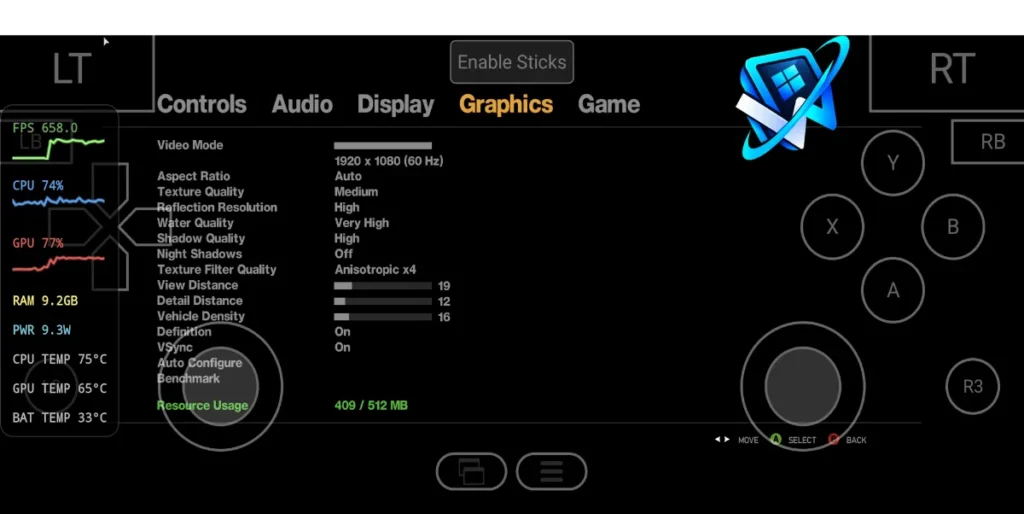
Record CPU Usage, GPU Usage, and Temperature
Record CPU and GPU utilization alongside device temperature. Repeat the test after the phone warms up to identify sustained-performance limitations.
Final Verdict:
Winlator LuDaShi can make selected PC versions of GTA games playable on compatible Android phones, but results vary by title and device.
Start with older releases, use conservative graphics settings, and move to more demanding games only after confirming stable performance.
Compare configurations using repeatable gameplay tests rather than assuming a particular chipset or driver guarantees success.