Best Winlator LuDaShi Settings to Improve FPS and Gaming Performance
The best Winlator LuDaShi settings for FPS depend on your phone’s chipset, GPU, available RAM, and the Windows game you want to run.
For many devices, a practical starting point is to use a compatible graphics driver, lower the rendering resolution, choose a suitable Box64 preset, and avoid unnecessary background activity.
However, no single configuration delivers the highest FPS in every game. A setting that improves rendering speed in one title may cause graphical glitches or crashes in another.
Winlator LuDaShi Best Settings for FPS
Start with conservative settings, establish a stable baseline, and adjust one option at a time. This approach makes it easier to identify improvements without introducing unnecessary compatibility problems.
Recommended Settings at a Glance
Setting | Recommended Starting Point | Expected Trade-Off |
Resolution | Lower than native resolution | Sharper performance, less image detail |
Graphics driver | Compatible driver recommended for your GPU | Compatibility may vary by game |
DXVK | Enable for supported Direct3D 9–11 games when compatible | May improve rendering or introduce glitches |
Box64 preset | Default or recommended preset | Balance between performance and stability |
Video memory | Appropriate allocation for the game and build | Excessive allocation can reduce memory headroom |
Graphics quality | Low or medium | Lower visual quality, potentially smoother gameplay |
These are starting recommendations. The ideal values depend on your particular phone and game.
Why the Best Settings Depend on Phone
CPU performance, GPU architecture, driver support, cooling, and memory capacity all influence emulation.
A Snapdragon phone with a compatible Adreno driver may need different graphics settings from a MediaTek device using a Mali GPU.
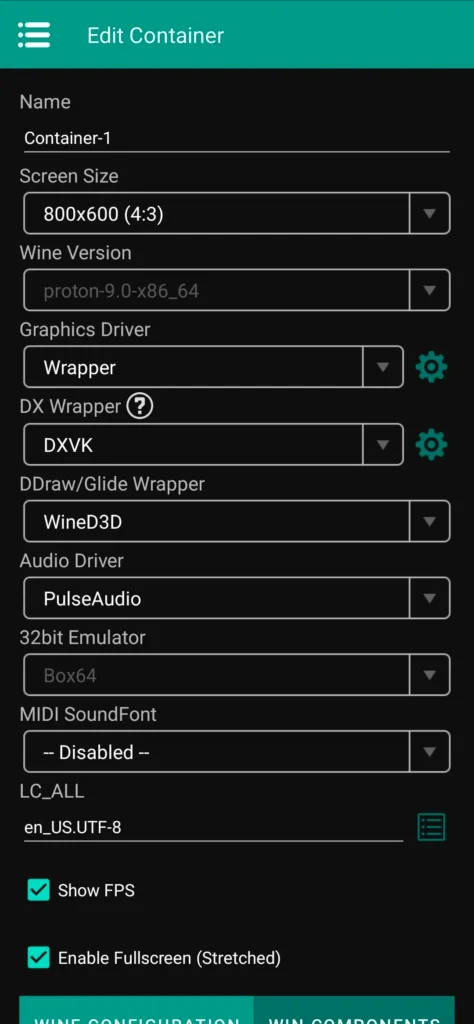
Best Container Settings for Winlator LuDaShi
Container settings determine how Windows applications run through the compatibility and translation layers. Keep the configuration simple until the game launches successfully.
Choose the Right Graphics Driver
Use a driver compatible with your phone’s GPU and the specific Winlator build. Turnip is intended for supported Adreno GPUs; it is not a universal graphics driver for every Android device.
If the game displays missing textures, a black screen, or crashes during startup, check driver compatibility before changing several unrelated options.
Configure DXVK Graphics Options
DXVK translates Direct3D 9, 10, and 11 graphics calls into Vulkan. It can improve performance in compatible configurations.
For Direct3D 12 games, VKD3D may be relevant if your build supports it. Choose the rendering option appropriate to the game’s graphics API rather than enabling every available component indiscriminately.
Select Suitable Box64 Presets
Box64 translates x86-64 instructions for compatible ARM64 devices. Start with the default or recommended preset provided by your build.
If a game runs slowly, test an alternative preset only when there is a clear reason to suspect CPU translation behavior. If stability deteriorates, return to the previous configuration rather than assuming a more aggressive preset is always faster.
Best Resolution and Graphics Settings for FPS
Lower Resolution to Reduce GPU Load
Reducing resolution is one of the simplest ways to lower GPU workload. If a game struggles at a high rendering resolution, try a lower option supported by the game and your Winlator configuration.
The trade-off is reduced sharpness. If lowering resolution makes little difference, the bottleneck may be CPU translation, memory, or an incompatible graphics configuration.
Adjust In-Game Graphics Quality
Reduce shadows, reflections, anti-aliasing, and other demanding effects first. Keep textures at a level your phone’s memory can handle.
Increase individual settings gradually after confirming stable gameplay. This helps preserve image quality without adding unnecessary rendering workload.
Configure Display Options
Choose a video-memory allocation appropriate for your build and game. More allocated VRAM does not create additional physical memory, so avoid increasing it without a specific reason.
Use a consistent display mode while testing. Switching multiple display and graphics options simultaneously makes it harder to identify the cause of performance changes.
Best Winlator LuDaShi Settings for Different Chipsets
FPS settings for different devices
These are the FPS settings of Winlator LuDaShi on different devices:
Snapdragon and Adreno GPU Settings
For compatible Snapdragon devices, start with a graphics driver supported by the specific Adreno GPU. Turnip may be appropriate, but support depends on the hardware and driver version.
For Winlator Snapdragon settings, combine a compatible driver with a conservative resolution and the recommended Box64 preset. Test sustained performance before increasing graphics quality.
MediaTek and Mali GPU Considerations
MediaTek devices with Mali GPUs require a compatible graphics configuration. Do not assume that Adreno-specific Turnip drivers will work on Mali hardware.
Start with the rendering options supported by your build, then check game-specific compatibility reports if graphical issues occur.
Settings for Older and Entry-Level Phones
On less powerful phones, prioritize lightweight games, lower resolution, and reduced graphics quality. Close unnecessary apps and avoid allocating excessive memory to the container.
These changes can reduce resource pressure, but they cannot overcome every hardware or software limitation.
How to Reduce Lag
Following these steps helps you to improve FPS:
Reduce Stuttering and Frame Drops
- Use lower graphics settings when the GPU is overloaded.
- Allow shader compilation to complete when applicable.
- Avoid changing several driver options at once.
- Keep a record of the configuration that works.
- Test the same game scene after every adjustment.
Manage Phone Temperature
If FPS falls after several minutes, overheating may be reducing CPU or GPU clock speeds. Play in a ventilated environment, avoid direct sunlight, and watch for temperature-related performance changes.
Sustained performance matters more than a brief peak FPS result.
Close Background Apps
Close unnecessary applications, downloads, and background processes before launching a demanding game. Insufficient available RAM can contribute to stuttering, slowdowns, and crashes.
Keep enough memory available for Android, the game, and Winlator’s supporting components.
Why FPS Remains Low
If performance does not improve after lowering resolution, investigate CPU limitations, thermal throttling, driver compatibility, and memory pressure.
If performance problems appear alongside compatibility issues, our Winlator LuDaShi Wine and Proton guide explains how these components affect Windows game support.
Fix Crashes, Black Screens & Graphics
Check the game’s requirements and restore a known-working driver configuration. Then test a compatible rendering option or Box64 preset individually.
Roll Back Settings That Reduce Stability
Keep notes or screenshots of working settings before making changes. If a new driver or preset introduces crashes, revert to the last stable configuration.
Test Winlator LuDaShi Best Settings for FPS
Compare Average FPS and Frame-Time Stability
Run the same scene at the same resolution and compare average FPS, noticeable stutters, and responsiveness. Repeat the test under similar conditions because background activity can distort results.
Record CPU Load, GPU Load, and Temperature
Record CPU and GPU utilization alongside temperature and FPS. Repeat the test after the phone warms up to identify thermal throttling.
If you are optimizing a Grand Theft Auto game, see our GTA games on Winlator LuDaShi performance, settings, and FPS guide for game-specific considerations.
Final Verdict
The best Winlator LuDaShi configuration balances FPS, image quality, and stability. Start with compatible drivers, lower resolution, and sensible Box64 settings, then benchmark each change.
When comparing Winlator LuDaShi vs Winlator, choose the build that performs more consistently on your phone and runs your preferred games reliably.